
Black Lines on Laptop Screen Lenovo
If you’re dealing with black lines on laptop screen lenovo, it can be frustrating and worrying. These lines may appear suddenly as vertical or horizontal streaks and can make your laptop difficult to use.
The good news is that not all cases require expensive repairs. In many situations, you can diagnose and even fix the issue yourself. In this complete guide, you’ll learn the real causes, proven fixes, and when it’s time to replace your screen.
Read Also: White Spot on Lenovo Laptop Screen
What Do Black Lines on Lenovo Laptop Screen Mean?
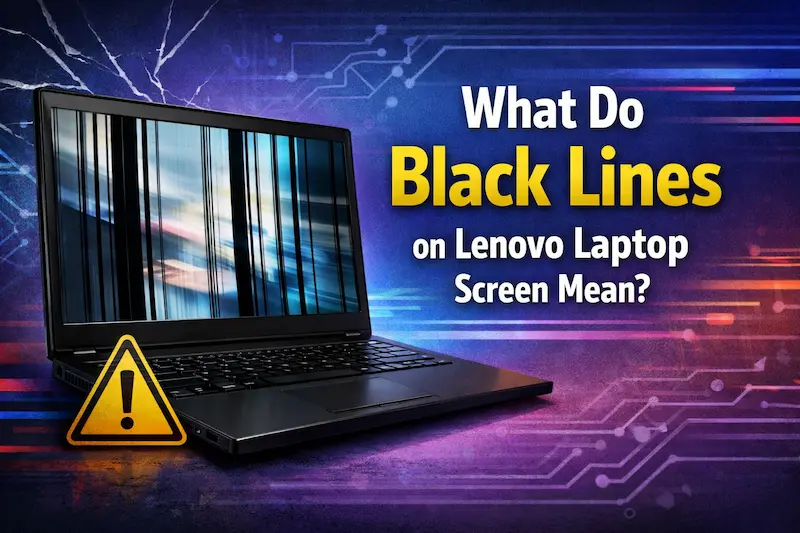
Black lines on a laptop screen usually indicate a display-related issue, either from hardware or software.
These lines may appear:
- Vertically (top to bottom)
- Horizontally (side to side)
- Constant or flickering
In most cases, the problem is linked to either the LCD panel, internal cable, or graphics system.
Read Also: The Lenovo ThinkPad X Series: A Complete Review
Main Causes of Black Lines on Laptop Screen
Understanding the cause is the key to fixing the issue correctly.
Dead Pixels or LCD Damage
Your laptop screen is made up of thousands of pixels. When a row of pixels fails, it creates a straight black line.
This type of issue:
- Does not move
- Usually stays permanent
- Often requires screen replacement
Physical damage like drops or pressure can also cause internal LCD failure.
Loose or Damaged Display Cable
Inside your Lenovo laptop, a ribbon cable connects the screen to the motherboard.
If this cable is:
- Loose
- Bent
- Damaged
It can disrupt the signal and create black lines on the screen.
Graphics Card or Driver Issues
Sometimes, the problem is not the screen but the graphics system.
- Outdated drivers can cause display glitches
- GPU failure can create lines or flickering
Many Lenovo users report that reinstalling display drivers can fix line issues.
How to Diagnose the Problem (Important Step)
Before attempting repairs, you must identify whether the issue is hardware or software.
External Monitor Test
This is the most important test.
Steps:
- Connect your laptop to an external monitor
- Check if the lines appear on both screens
Results:
- If lines appear on both → GPU issue
- If only on laptop screen → LCD or cable issue
This method is widely recommended by experts to isolate the problem.
BIOS / Safe Mode Check
- Boot into BIOS or Safe Mode
- Observe if lines are still visible
If lines appear even in BIOS, it usually indicates hardware damage.
How to Fix Black Lines on Lenovo Laptop Screen
Now let’s look at practical solutions.
Restart and Basic Fixes
Start with simple steps:
- Restart your laptop
- Disconnect external devices
- Perform a hard reset
Temporary glitches can sometimes cause display issues.
Update or Reinstall Graphics Drivers
This is one of the most effective solutions.
Steps:
- Go to Device Manager
- Uninstall display driver
- Restart laptop
- Install latest Lenovo driver
Driver issues are a common cause of screen lines.
Adjust Display Settings
Incorrect settings can sometimes cause display artifacts.
Try:
- Changing resolution
- Adjusting refresh rate
This can fix minor display glitches.
When It’s a Hardware Problem
If none of the fixes work, the issue is likely hardware-related.
Common signs:
- Lines appear in BIOS
- Lines increase over time
- Screen flickers or distorts
Experts confirm that black lines often indicate faulty display panel or cable damage.
Read Also: Lenovo IdeaPad 330 Windows 7 Installation Guide (Complete 2026 Guide)
Screen Repair and Replacement Cost (2026)
Here’s an estimated cost breakdown:
| Type | Price Range |
|---|---|
| Basic LCD | Rs. 5,000 – 8,000 |
| HD Display | Rs. 8,000 – 12,000 |
| Full HD IPS | Rs. 12,000 – 18,000 |
Cost depends on:
- Model
- Screen quality
- Availability
DIY vs Professional Repair
DIY Repair
Suitable for:
- Driver issues
- Minor glitches
Not recommended for:
- Screen replacement
- Internal hardware issues
Professional Repair
Choose a technician if:
- Lines persist after troubleshooting
- Display is physically damaged
- Multiple issues appear
Replacing an LCD panel requires technical expertise.
Prevention Tips
To avoid black lines in the future:
- Avoid pressure on the screen
- Use a protective laptop bag
- Keep laptop on hard surfaces
- Update drivers regularly
- Avoid overheating
Final Verdict
Black lines on laptop screen lenovo can be caused by both software glitches and hardware damage.
If the issue is software-related, simple fixes like driver updates can solve it. However, if the problem is hardware-based, screen replacement is often the only solution.
Diagnosing the issue correctly is the most important step. Once you identify the cause, you can save both time and money by choosing the right fix.
