

Lenovo C740 Keyboard (Backlight, Features, Issues & Complete Guide)
If you are searching for the Lenovo C740 keyboard, you’re likely trying to understand its features, how the backlight works, or how to fix common issues. The Lenovo Yoga C740 is a premium 2-in-1 laptop, and its keyboard plays a major role in the overall user experience.
Unlike budget laptops, the C740 offers a refined typing experience with a sleek design, responsive keys, and built-in backlighting. However, many users still face confusion regarding keyboard shortcuts, lighting control, and occasional functionality problems.
In this complete guide, you’ll learn everything about the Lenovo C740 keyboard — from features and performance to troubleshooting and optimization tips.
Read Also: Lenovo IdeaPad 320 Keyboard Light (How to Turn On & Fix Guide)
Overview of Lenovo C740 Keyboard
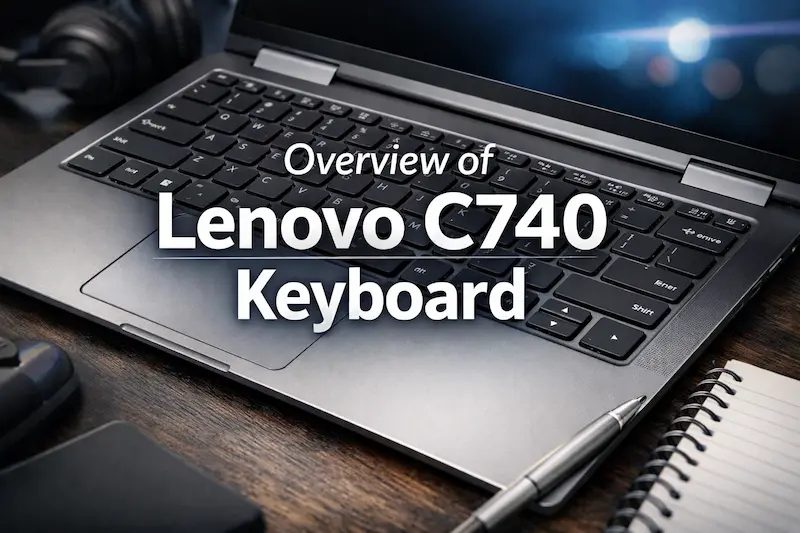
The Lenovo Yoga C740 comes with a full-size, backlit keyboard designed for productivity and comfort. It is specifically built for users who type frequently, such as students, writers, and professionals.
Key Highlights:
- Backlit keyboard (multi-level brightness)
- Comfortable key travel
- Quiet typing experience
- Minimalistic and modern layout
The keyboard layout follows Lenovo’s standard design, which means it includes function keys, shortcut controls, and multimedia buttons integrated into the top row.
One thing users immediately notice is the smooth typing feedback, which makes long typing sessions much easier compared to cheaper laptops.
Lenovo C740 Keyboard Backlight Features
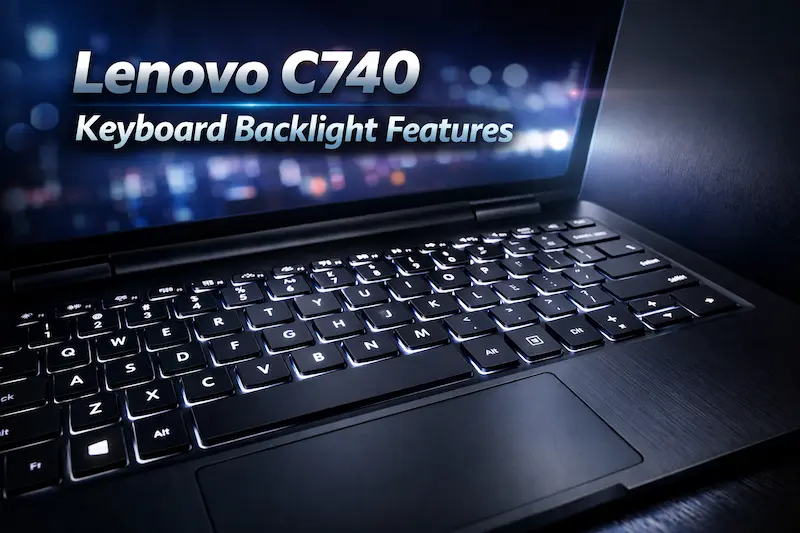
One of the most important features of the Lenovo C740 keyboard is its backlighting system.
Why Backlight Matters
A backlit keyboard allows you to:
- Type easily in low-light environments
- Improve visibility at night
- Reduce eye strain
This is especially useful for students and professionals who work late hours.
How to Turn On Keyboard Light on Lenovo C740
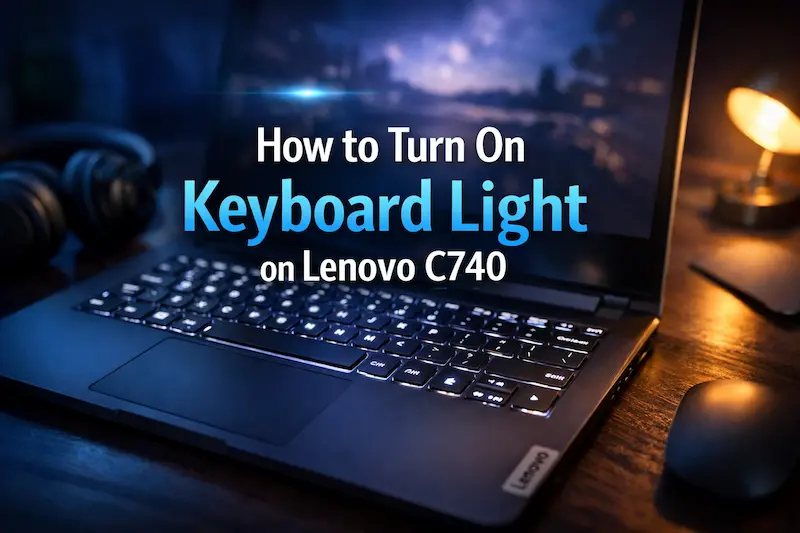
Turning on the keyboard backlight is simple, but many users are unaware of the correct shortcut.
Shortcut Key:
Press: Fn + Spacebar
Backlight Modes:
- First press → Low brightness
- Second press → High brightness
- Third press → Off
This cycle allows you to adjust brightness based on your environment.
Keyboard Design and Typing Experience
The Lenovo C740 keyboard is designed for comfort and efficiency.
Typing Feel
- Soft key presses
- Balanced resistance
- Minimal noise
This makes it ideal for:
- Writing articles
- Office work
- Coding
The keys are spaced properly, reducing typing errors and improving speed.
Key Layout and Function Keys
The top row of the keyboard includes function keys (F1–F12) that control various system features.
Common Functions:
- Volume control
- Screen brightness
- Airplane mode
- Keyboard backlight
Some keys require pressing the Fn key, depending on your settings.
Common Lenovo C740 Keyboard Issues
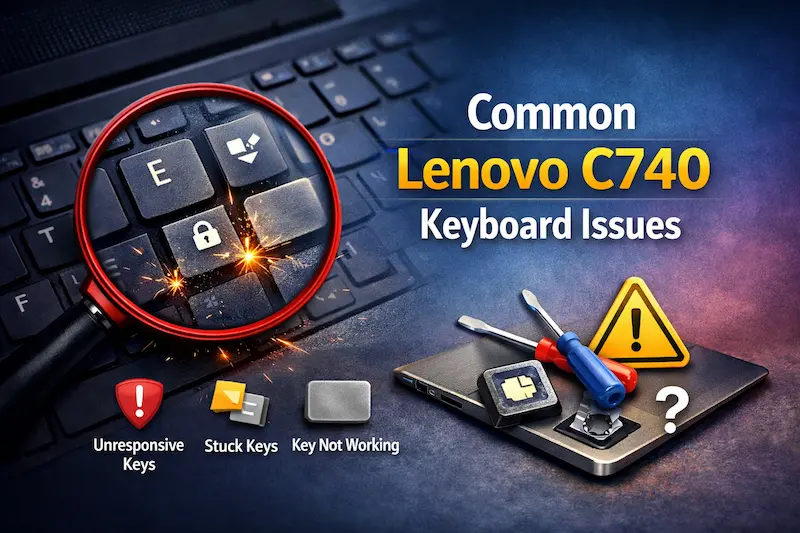
Even though the keyboard is high-quality, users may experience some problems.
1. Keyboard Backlight Not Working
This is one of the most common issues.
Possible Causes:
- Disabled in BIOS
- Driver issue
- Lenovo Vantage settings
2. Fn Key Not Working
Sometimes shortcut keys don’t respond.
Fix:
- Press Fn + Esc to toggle Fn Lock
- Check keyboard settings
3. Certain Keys Not Responding
This may happen due to:
- Dust or debris
- Software glitch
- Hardware damage
Read Also: Lenovo IdeaPad S340 Backlit Keyboard: Complete Guide, Features, Setup & Fixes
How to Fix Lenovo C740 Keyboard Backlight Not Working
If your keyboard light is not turning on, follow these steps.
Step 1: Use Correct Shortcut
Make sure you are pressing:
Fn + Spacebar
Step 2: Check Lenovo Vantage
Lenovo laptops use a utility called Lenovo Vantage.
- Open Lenovo Vantage
- Check keyboard backlight settings
- Enable lighting
Step 3: Update Drivers
Outdated drivers can cause keyboard issues.
Steps:
- Open Device Manager
- Update keyboard drivers
- Restart laptop
Step 4: Check BIOS Settings
Sometimes the backlight is disabled in BIOS.
Steps:
- Restart laptop
- Press F2
- Look for keyboard settings
- Enable backlight
How to Clean Lenovo C740 Keyboard

Proper maintenance can improve performance and lifespan.
Cleaning Tips:
- Use a microfiber cloth
- Avoid liquid directly on keyboard
- Use compressed air for dust
Keeping your keyboard clean prevents key malfunction.
Lenovo C740 Keyboard for Productivity
The keyboard is highly suitable for productivity tasks.
Best For:
- Students writing assignments
- Freelancers
- Office professionals
- Bloggers and content writers
Its comfortable design reduces fatigue during long typing sessions.
Comparison with Other Lenovo Keyboards
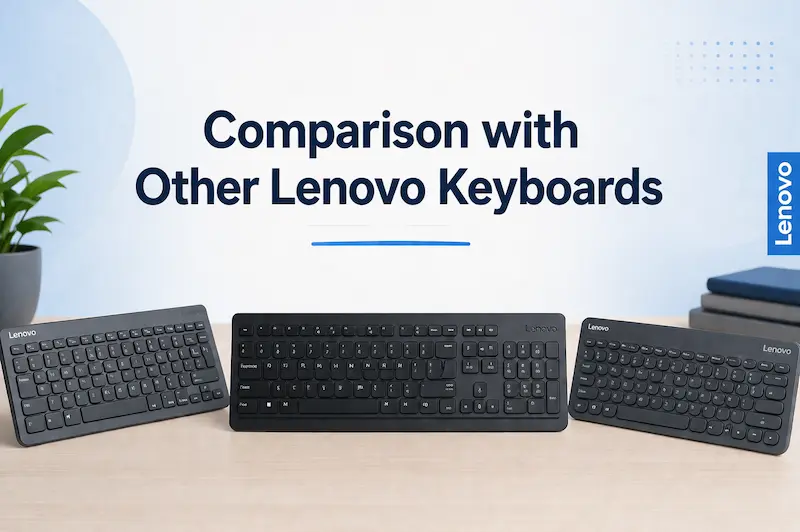
C740 vs C940
- C940 offers slightly better tactile feedback
- C740 is still excellent for daily use
C740 vs Budget IdeaPad
- Better build quality
- More comfortable typing
- Backlight included
Tips to Improve Keyboard Experience
To get the best experience:
- Adjust backlight brightness
- Use external keyboard for heavy typing (optional)
- Keep drivers updated
- Avoid eating near keyboard
These small habits can significantly improve performance.
When You Should Replace the Keyboard
Keyboard replacement is rarely needed, but consider it if:
- Multiple keys stop working
- Backlight completely fails
- Physical damage is visible
Replacement is usually affordable and restores full functionality.
Read Also: Lenovo 500e Keyboard: Features, Replacement, Fixes & Complete Guide
Final Verdict
The Lenovo C740 keyboard is one of the strong points of this laptop. It offers a premium typing experience, reliable backlighting, and a comfortable layout suitable for everyday use.
Most issues users face are minor and can be fixed with simple troubleshooting steps. Whether you are a student, professional, or casual user, this keyboard delivers both performance and convenience.
Also visit Digital Global Times for more quality informative content.
