
Lenovo Laptop Screen Not Working (Causes, Fixes & Complete Troubleshooting Guide)
If your lenovo laptop screen not working, you’re not alone. This is one of the most common problems Lenovo users face, and it can happen suddenly without warning.
The issue can appear in different forms. Sometimes the screen stays completely black, while in other cases, the laptop turns on but shows no display. In some situations, the screen may flicker, freeze, or show distorted visuals.
The good news is that most screen problems are not permanent. In many cases, you can fix the issue yourself without spending money on repairs.
In this complete guide, you’ll learn the exact causes and step-by-step solutions to fix your Lenovo laptop screen.
Read Also: Lenovo Chromebook Won’t Turn On (Causes, Fixes & Complete Troubleshooting Guide)
What Does “Lenovo Laptop Screen Not Working” Mean?
Before fixing the issue, it’s important to understand what’s actually happening.
This problem usually falls into one of these categories:
- Laptop turns on but screen is black
- Screen flickers or shows lines
- Display is very dim or blank
- External monitor works but laptop screen doesn’t
Each of these symptoms points to a different cause.
Common Causes of Lenovo Laptop Screen Not Working
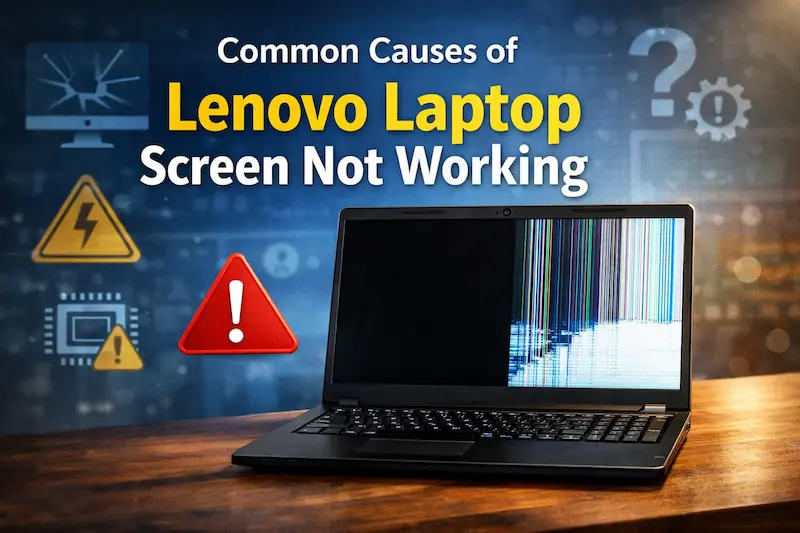
Understanding the cause is the first step toward fixing the problem.
1. Display or Screen Damage
If your laptop was dropped or pressed:
- Screen may be physically damaged
- Internal LCD layers may break
Signs include:
- Cracks
- Black spots
- White patches
2. Loose or Damaged Display Cable
Inside your laptop, a cable connects the screen to the motherboard.
Over time:
- It can become loose
- It may get damaged due to hinge movement
This often causes:
- Flickering
- Black screen when moving lid
3. Graphics Driver Issues
Sometimes, the problem is not hardware but software.
Outdated or corrupted drivers can cause:
- Blank screen
- Flickering
- Display glitches
4. RAM or Hardware Issue
If RAM is faulty:
- Laptop may turn on but show no display
5. Power or Battery Problem
If your laptop is not receiving proper power:
- Screen may not turn on
- Device may appear dead
Quick Fixes (Try First)
Before going into advanced solutions, try these simple fixes.
1. Restart Your Laptop
- Hold power button for 10–15 seconds
- Turn it on again
Sometimes, a simple restart fixes temporary glitches.
2. Increase Brightness
It may sound simple, but sometimes the screen is just dim.
- Press brightness keys
- Check display visibility
3. Check Charging
Make sure:
- Charger is connected
- Battery is not dead
How to Diagnose the Problem (Very Important)
Before fixing, you need to identify whether the issue is hardware or software.
External Monitor Test
This is the most effective method.
Steps:
- Connect your laptop to an external monitor
- Turn on the laptop
Results:
- External display works → screen issue
- External display also blank → GPU or system issue
BIOS Test
Steps:
- Restart laptop
- Press F2 to enter BIOS
Results:
- Screen works in BIOS → software issue
- Screen still blank → hardware problem
How to Fix Lenovo Laptop Screen Not Working
Now let’s go through step-by-step solutions.
Fix 1: Hard Reset (Power Drain Method)
This is one of the most effective fixes.
Steps:
- Turn off laptop
- Remove charger
- Remove battery (if possible)
- Hold power button for 30–60 seconds
- Reconnect and turn on
This removes residual power and resets hardware.
Fix 2: Reseat RAM (Advanced)
Faulty RAM can prevent display.
Steps:
- Open back panel
- Remove RAM
- Clean and reinsert
Fix 3: Update or Reinstall Display Drivers
Steps:
- Boot into Safe Mode
- Open Device Manager
- Update or reinstall display driver
This fixes software-related issues.
Fix 4: Check Display Cable
If screen works when moving lid:
- Cable may be loose
This requires technician repair.
Fix 5: Test with External Monitor
If external monitor works:
- Replace laptop screen
When It’s a Hardware Problem
You likely have hardware damage if:
- Screen is completely black
- No display even in BIOS
- External monitor works fine
Common hardware issues:
- Broken screen
- Loose cable
- GPU failure
Repair Cost (2026 Estimate)
| Problem | Price Range |
|---|---|
| Screen replacement | Rs. 8,000 – 18,000 |
| Cable repair | Rs. 2,000 – 4,000 |
| GPU repair | Rs. 10,000 – 20,000 |
DIY vs Professional Repair
DIY Fixes
- Restart
- Driver update
- Power drain
Professional Repair
Needed when:
- Screen is physically damaged
- Internal parts need replacement
Common Mistakes Users Make
Avoid these:
- Assuming screen is broken immediately
- Ignoring external monitor test
- Using force shutdown repeatedly
These can worsen the problem.
Tips to Prevent Screen Issues
- Avoid dropping laptop
- Do not press screen
- Open lid gently
- Keep drivers updated
These habits increase lifespan.
When to Replace the Laptop
Consider replacement if:
- Repair cost is too high
- Laptop is very old
- Multiple hardware issues exist
Final Verdict
The lenovo laptop screen not working issue can be caused by both hardware and software problems. The key is proper diagnosis using methods like external monitor and BIOS test.
Most issues can be fixed easily with simple steps like power drain or driver updates. However, if the problem is hardware-related, screen replacement may be required.
Understanding the root cause will save you time, money, and unnecessary stress.
Also visit Digital Global Times for more quality informative content.
