
How to Screenshot for Lenovo (Complete Guide for All Models & Methods)
If you are searching for how to screenshot for lenovo, you are likely trying to capture your screen quickly for work, study, or sharing information.
Taking a screenshot on a Lenovo laptop is very easy, but many users don’t know the correct shortcuts or methods. Lenovo laptops run on Windows, so they support multiple ways to take screenshots depending on your needs.
In this complete guide, you’ll learn all the possible methods to take screenshots on Lenovo laptops, including shortcuts, tools, and advanced tips.
Read Also: Lenovo Laptop Screen Not Working (Causes, Fixes & Complete Troubleshooting Guide)
What Is a Screenshot?
A screenshot is an image of your screen that captures whatever is currently displayed.
Common Uses:
- Saving important information
- Sharing errors or messages
- Creating tutorials
- Taking notes
Method 1: Using Print Screen (PrtScn Key)
This is the most common method.
Full Screen Screenshot
Press:
PrtScn (Print Screen)
What Happens:
- Entire screen is copied to clipboard
Next Step:
- Open Paint or Word
- Press Ctrl + V to paste
Method 2: Windows + Print Screen
This method saves the screenshot automatically.
Shortcut:
Windows Key + PrtScn
Result:
- Screen flashes
- Screenshot saved automatically
Location:
- Pictures → Screenshots folder
Method 3: Alt + Print Screen (Active Window)
If you want to capture only the active window:
Shortcut:
Alt + PrtScn
Result:
- Captures only active window
- Copy to clipboard
Method 4: Snipping Tool (Built-in Windows Tool)
Windows includes a tool for advanced screenshots.
Steps:
- Search Snipping Tool
- Click “New”
- Select area
Features:
- Free-form capture
- Rectangular snip
- Window snip
- Full screen
Method 5: Snip & Sketch (Modern Tool)
This is an upgraded version of Snipping Tool.
Shortcut:
Windows + Shift + S
Options:
- Rectangle
- Freeform
- Window
- Full screen
Screenshot is copied to clipboard instantly.
Method 6: Using Fn Key (Lenovo Specific)
Some Lenovo laptops require Fn key.
Shortcut:
Fn + PrtScn
This depends on your keyboard settings.
Method 7: Using Lenovo Vantage or Software
Some Lenovo systems include additional tools.
However, Windows tools are usually sufficient.
Where Are Screenshots Saved?
Depending on method:
Clipboard Methods:
- Must paste manually
Auto Save Method:
- Pictures → Screenshots
How to Edit Screenshots
You can edit screenshots using:
- Paint
- Snip & Sketch
- Photoshop
Basic Editing:
- Crop
- Highlight
- Add text
How to Take Screenshot of Specific Area
Use:
Windows + Shift + S
Then:
- Select area
- Paste image
How to Take Screenshot on Lenovo Tablet Mode
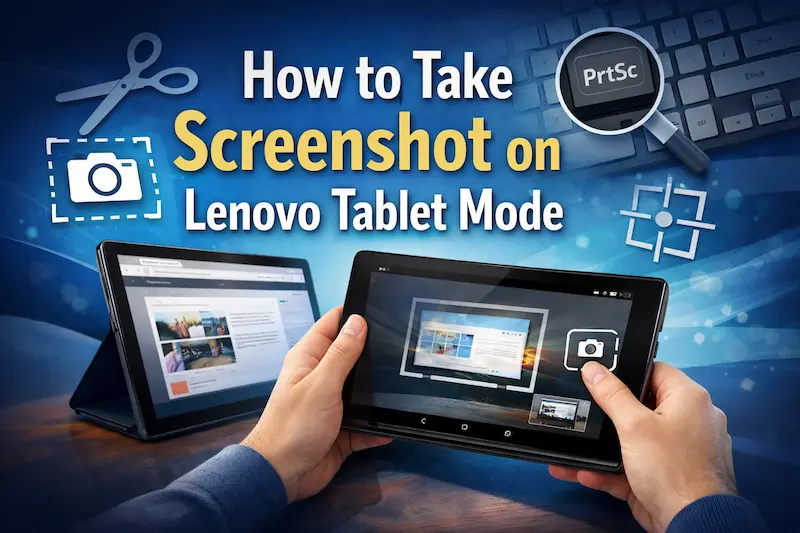
If using touchscreen:
Use Snip & Sketch
Or:
- Use stylus tools
Screenshot on Lenovo Chromebook
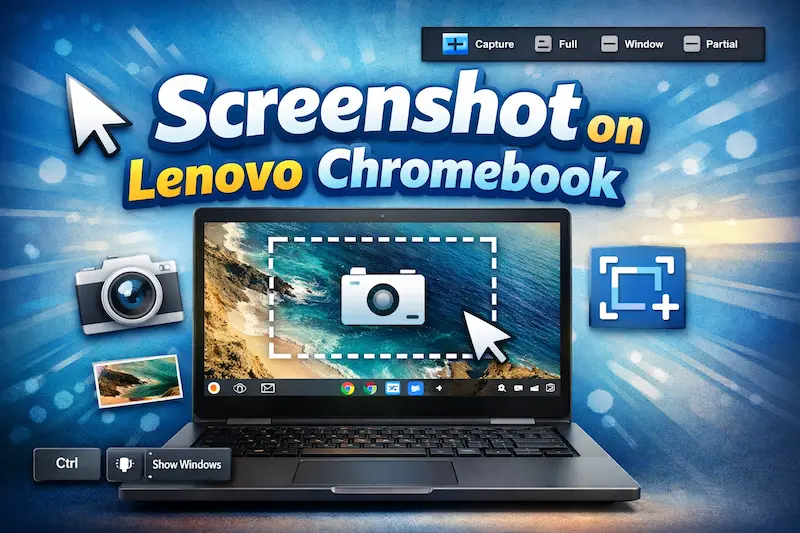
If using Chromebook:
Shortcut:
- Ctrl + Show Windows key
Common Screenshot Problems and Fixes
1. PrtScn Not Working
Fix:
- Use Fn + PrtScn
2. Screenshot Not Saving
Fix:
- Use Windows + PrtScn
3. Clipboard Not Working
Fix:
- Restart system
Tips for Taking Better Screenshots
- Use Snipping Tool for precision
- Crop unnecessary parts
- Highlight important areas
Best Method for Different Needs
| Need | Best Method |
|---|---|
| Full screen | Windows + PrtScn |
| Quick capture | PrtScn |
| Selected area | Windows + Shift + S |
| Active window | Alt + PrtScn |
Common Mistakes Users Make
Avoid these:
- Not pasting screenshot
- Using wrong shortcut
- Ignoring Fn key
Screenshot for Work and Productivity
Screenshots are useful for:
- Online work
- Tutorials
- Reporting issues
Advanced Screenshot Tools
If you need more features:
- Lightshot
- Greenshot
- ShareX
When Screenshot Is Not Enough
Use screen recording tools if needed.
Final Verdict
Learning how to screenshot for lenovo is essential for productivity. With multiple methods available, you can choose the one that best suits your needs.
The easiest method is Windows + PrtScn, while the most flexible is Windows + Shift + S. Once you understand these shortcuts, capturing your screen becomes quick and effortless.
Also visit Digital Global Times for more quality informative content.
